Right Click Protection

Showing posts with label Mobile. Show all posts

Thursday, April 12, 2012

How to Run Android Apps On Your PC


Android is the most loved and famous mobile OS to date.It indeed has the best apps collection even rivaling Apples App Store as it continues to grow more apps are submitted and published on the Android Market(Google Play).So you love your mobile apps that you want to have them on other devices? Thing is that you can even run your Android apps on your PC/Laptop, Cool huh?

What makes that possible is just software that you need to install in both your phone and PC and that’s BlueStacks. BlueStacks App Player lets you run your Android apps fast with full screen on Windows PCs and tablets. It supports the most popular Desktop OS that is of course “Windows 7” for now and maybe MAC OS X support may be coming on later although the ETA is not known yet.

How to exactly run Android apps on PC?

Step1:Alright guys simple, you just need to have the latest Bluestacks software for your PC which you can get here.

Step2:Install the Cloud Connect App on your android phone which will allow you to sync your android apps from your phone to the Bluestacks Software so you could run the apps you own from your phone on your PC too.Download the latest version of Cloud Connect here.

That’s all, it’s pretty simple and fast it will seamlessly sync with your android apps and run them on your desktop and your good to go! If this was helpful to you please don’t forget to like us on Facebook or follow us on Twitter. Don’t know where to start? You couldn’t get the apps to run on your PC? Don’t worry just leave a comment down below and we will help you through.


Wednesday, April 4, 2012

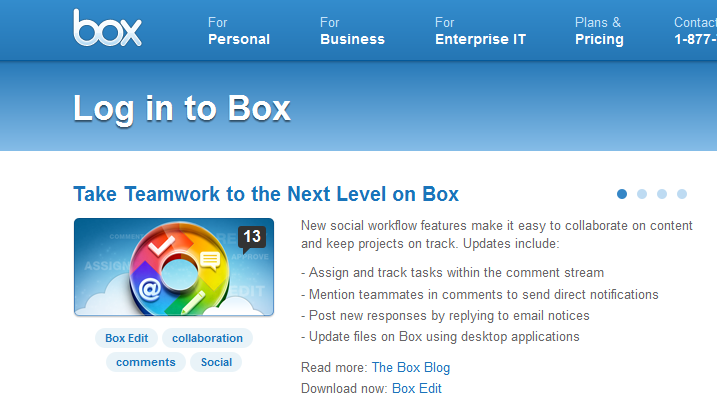
How To Get 50GB Of Box.com Cloud Storage For Free


As technology evolves we see more importance of saving our files on the cloud. This generation fires up the start of a new world of storage as everything is moving to the cloud (literally). Cloud storage shows that there is no need of saving your backup on your local hard disk as it can get damaged anytime or maybe get stolen or lost and have all your data gone!

But saving on the cloud is not affected by any of these problems. As it is stored and can be retrieved anytime by just logging into your account and download your data from the cloud. So it’s really important that you save all your important files to an online storage service before you lose them.

Box.com is one of the providers of Cloud storage but they usually only provide 5 GB of free space or you could pay for 19.99 per month! for 50GB.But I will guide you on how to get free 50GB.

How do you get free 50GB Box.com storage space?

Well you have to have an android phone for this to work as it involves installing of an android application which helps you to get the free 50GB storage. YES! On any “android phone”, it works even on Huawei Ideos from Tigo Tanzania.

 Just follow the following easy steps.

Step 1: Sign up for a Box.com account first, Sign up here.

Step 2: Download Android app from here.

Step 4: Transfer it to your Phone with a USB Cable or Bluetooth connection.

Step 5: Install the app "com.redphx.boxnet-1.1.apk" in your android phone and open it, input your email address and password you signed up with.

Step 6: Press "Upgrade to 50GB!!!" you will see a message popup saying you have been upgraded to 50GB.


Enjoy your free 50GB Cloud storage from the popular box.com! Don’t forget to like us on Facebook and follow us on Twitter.

Tuesday, April 3, 2012

How to easily Root any android Phone


Android is a mobile OS known to give users freedom to use their phones as they please. But it still has some restrictions which people often want to overcome. Looking at the competition, meaning iOS from Apple. There are so many restrictions that you can’t use your phone at its full potential, but with the help of Jailbreaking your phone you can open the doors for it for many other tweaks and apps to run on it.

So it’s the same as an Android phone, to have more features and tweaks not found on Stock Android Market (Google Play) you need to Root your phone then you will have support for Root Directory Browsing, support of other apps that need SU permissions. To root your phone the easy way just follow the following steps.

Steps to root your Android Phone.

Step1: You need to enable USB Debugging mode on your Android: Tap Menu > Settings > Applications > Development. Then enable USB debugging.

Step2: Check if your SD card is not mounted: Tap Menu > SD Card & Phone Storage, and (if available) tap Unmount SD Card.

Step3: Download SuperOneClick here. http://www.4shared.com/rar/9ocvoybZ/Super_One_Click_233.html

Step4: After Download unzip the file and run SuperOneClick.exe


Step5: Plug in your Android Phone into your computer via the USB cable that came with the phone,(Remember you should install your phone’s drivers first!)

Step6: Finally your phone will be detected and just click the Root button on SuperOneClick.

After following these steps properly, you should get a fully Rooted Android Phone and enjoy the freedom and more features of a rooted phone. If you don’t understand or can’t follow up with this Tutorial properly then I will kindly help you, just fire up a comment or question down on the comments section below.

Thursday, March 29, 2012

Forgot your Android pattern lock?Here is the easy way to reset it.


Why the phone is sometimes locked out?
-Possibilities are that you have attempted too many pattern attempts.
-Someone else was playing with your lock screen code that it locked because of many attempts.

How to unlock any android phone which is locked out?

-If pattern was wrong 5 times and then it locked, select “Forgot Pattern”
-It will ask you for your email ID and password, if entered correctly then phone will successfully unlock.

What if you forgot your email ID or password?

Well then you need to hard reset your phone, which will delete all your settings and apps on your phone.SD card data will be preserved so worry not.
  • Shutdown your phone by holding down the power button.
  • Hold down the Volume Up and Power button simultaneously. Optional:For other phones try holding down the Volume down button and power button.(or Vol down+Up)
  • Continue holding the Volume Up and Power buttons until the phones logo screen is displayed.
  • When the phone’s logo screen is displayed, release the Power button but continue holding the Volume button until the Android System Recovery menu is displayed.
  • Once you are on the Android System Recovery menu, select the wipe data/factory reset option.  Moving the selection up and down is done with the Volume Up and Volume Down buttons.  Once you have the wipe data/factory reset option highlighted, you select it by touching the Home button.
  • Once you have chosen the factory reset option, you will see a confirmation screen.  Highlight the Yes delete all user data option and touch the Home button to select it.
  • The process of wiping the phone should only take a few seconds and when it is finished, you will be returned to the Android System Recovery menu.
  • Highlight and select the reboot system now option
  • You phone will now reboot back into normal mode
Don't forget to like our Facebook page and Follow us on Twitter.Didn't understand some steps?Please let us know your doubts in the comments section below.